How it works
From a flyer to a staffed plan in minutes.
Follow a two-day team retreat from the programme in your inbox to a plan your crew carries on their phones.
The whole story in 1:41 minutes, with sound and subtitles.
The individual steps in detail
- 01
It starts with a flyer in your inbox
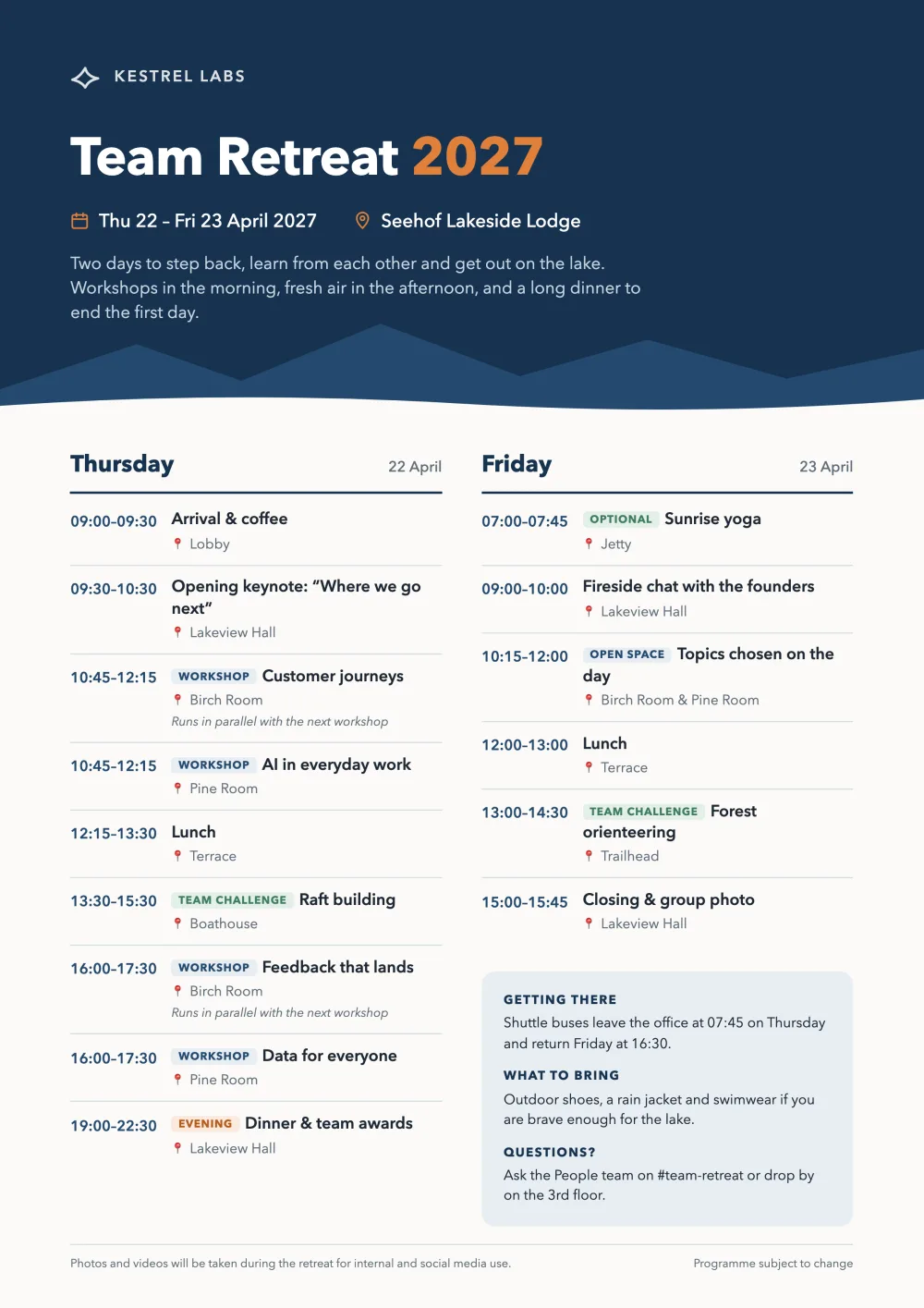
Kestrel Labs is off to a lakeside lodge for a two-day team retreat, and your social media crew is covering it. Fifteen sessions, six people, and all you have is the programme as a PDF.
- Workshops, talks and team challenges, often in parallel
- Every session needs a photographer or a videographer
- 02
Start from the programme you already have
Drop a PDF, an image, a spreadsheet or a link into AI import and name the people you work with. Bewhere turns it into locations, sessions and people. You review the draft before anything is imported.
- Tell it what to do in plain words, like “don't assign anyone yet”
- Prefer to type? Add everything by hand, or import CSV or JSON
- 03
See the whole day at a glance
The day schedule puts every session in its room at its time, one column per location. Parallel sessions sit side by side, so you see at once where you need more than one person.
- Switch to the people view to see everyone's day
- Zoom in and out, and jump between days
- 04
Sketch your venue once
Upload a map of the venue and draw a box for each room. Bewhere then knows what's close to what, and your team can find every place on the plan.
- Several floors, each with its own map
- Play through the day to see what happens where
- 05
Staff every session in one click
Auto Fill puts someone on every session that is still open. It never books a person twice and keeps everyone's walks between rooms short. Assignments you made yourself stay as they are.
- Run it again after changes: it only fills the gaps
- Filter for open sessions or conflicts any time
- 06
Handle changes without losing track
When the programme moves, edit the session. If that books someone twice, Bewhere flags it right away. Open the session, hand the assignment to someone who is free, and the conflict is gone.
- The people list shows who is busy, and with what
- Every change is saved in the history and can be undone
- 07
Swap assignments by drag and drop
In the people view, drag an assignment from one person to another. It keeps its time and place; only who does it changes.
- Drag sessions to another time or room in the location view
- On touch screens, press and hold to drag
- 08
Write down what your team needs to know
The fact sheet is one shared page for the event: arrival, contacts, dress code, a shot list, whatever matters to you. Type @ to link a session, a person or a place.
- Headings, lists, links and images
- Every save is a version you can restore
Plan your next event with bewhere.app.
Start with the programme you already have, and work out who goes where.
Start for free